Last mod: 2026.03.02
NFS (Network File System) - Installation guide
Server NFS (host A)
Dedicated drive for shared partition
This step can be skipped if you do not want to use an additional dedicated drive for shared files. In the example, the server will be Raspberry Pi 4 with a 4TB HDD connected via USB 3.
Create the required directory, e.g.
sudo mkdir -p /mnt/RaPiHddStorage4TB
To mount an additional drive, we need to check its UUID using the command:
blkid
We will use the UUID value read for our disk partition to create an entry in the /etc/fstab file:
UUID=<YOUR_PARTITION_UUID> /mnt/RaPiHddStorage4TB ext4 defaults,noatime,nofail,commit=120,x-systemd.device-timeout=30 0 2
Restart the computer:
sudo reboot now
Run:
df -h
and we should have a mounted partition:
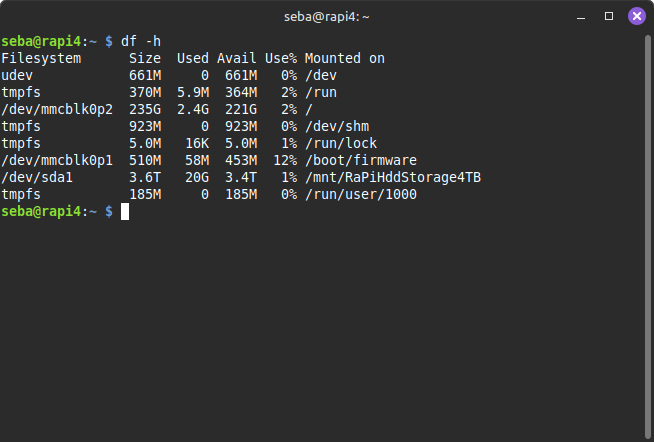
/dev/sda1 3.6T 20G 3.4T 1% /mnt/RaPiHddStorage4TB
NFS configuration on the server
Install:
sudo apt update
sudo apt install -y nfs-kernel-server
Add line in /etc/exports (it's' safty only in private network):
/mnt/RaPiHddStorage4TB 192.168.3.0/24(rw,sync,no_subtree_check,no_root_squash)
Assume that we are using a network 192.168.3.0/24. Attention! It's' safty only in private network. Every computer in this network will have access to the files.
Refresh the list of exports:
sudo exportfs -ra
Check that the configured directory is exported:
sudo exportfs -v
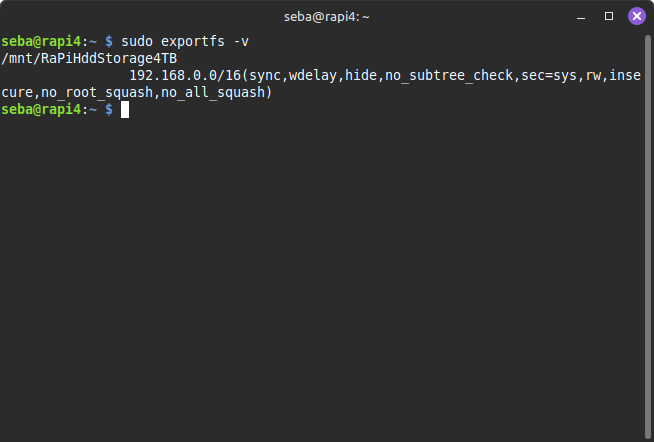
Launching the server:
sudo systemctl start nfs-kernel-server
sudo systemctl enable nfs-kernel-server
Check status:
sudo systemctl status nfs-kernel-server
Client NFS (host B)
Install client:
sudo apt update
sudo apt install -y nfs-common
Create mount point:
sudo mkdir -p /mnt/RaPiHddStorage4TB
Change the owner if you are the only user:
sudo chown $USER:$USER -R /mnt/RaPiHddStorage4TB/
Install for testing:
sudo mount -t nfs 192.168.3.19:/mnt/RaPiHddStorage4TB /mnt/RaPiHddStorage4TB
Check whether you can see the shared resources (Replace the IP with the IP of the NFS server):
showmount -e 192.168.3.19
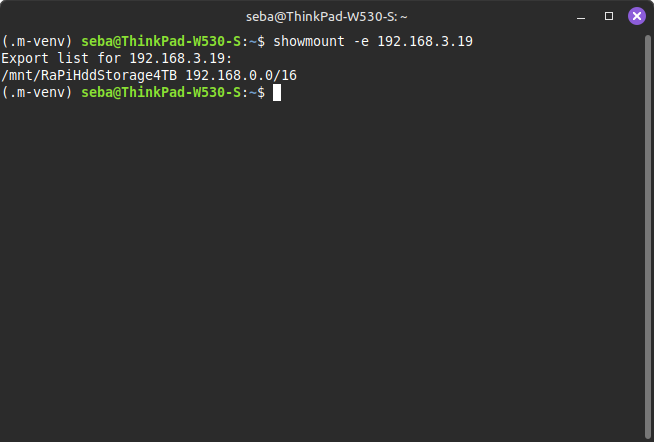
If everything works correctly, add the following line to the /etc/fstab file:
192.168.3.19:/mnt/RaPiHddStorage4TB /mnt/RaPiHddStorage4TB nfs4 _netdev,noauto,x-systemd.automount,x-systemd.device-timeout=30,timeo=10,soft,retry=3 0 0
Now the NFS resource will be mounted during system startup.
There are many configurable parameters available. The ones presented here serve only as examples.